How it works
Studeia implements the Model Context Protocol (MCP) with Streamable HTTP transport and OAuth 2.1 (dynamic client registration, PKCE S256, rotating refresh token). The AI assistant connects with your account, not with an institution-wide key: everything it does goes through the same permission rules as the web interface and is recorded in the audit log.
| Institutional administrator | Coordinator / pedagogical staff | Teacher | |
|---|---|---|---|
| Who enables the connector | Yes | No | No |
| Read | Everything in the tenant: courses, lessons, students, class groups, grades, reports, settings | Everything in the tenant, except AI and tenant settings | Courses they created, collaborate on, or teach; students in their classes |
| Write | Courses, modules, lessons, teacher guides, people, class groups, enrollments, grades, gamification, automations, settings | The same, except 14 configuration tools | Courses, lessons, grades, and live classes for their courses |
| Visible tools | 139 | 125 | 76 |
| Out of scope | Billing, SSO/SCIM, provider keys, uploads, the connector toggle itself | Same | Same |
The screenshots in this guide show Studeia in Portuguese and ChatGPT/Claude in the language and theme of the account used (Portuguese, dark theme); menu names may vary depending on your assistant's version and language.
1. Enable at the institution (admin)
- Go to Settings → AI Connectors (ChatGPT / Claude).
- Turn on Allow MCP connections. Optionally turn off Teachers can also connect (teachers will be restricted to the courses and class groups they teach).
- Copy the MCP server URL — typically
https://<slug>.studeia.com/api/mcp. If the institution has a verified custom domain, it appears as the first option; the main addresshttps://studeia.com/api/mcpalso works.
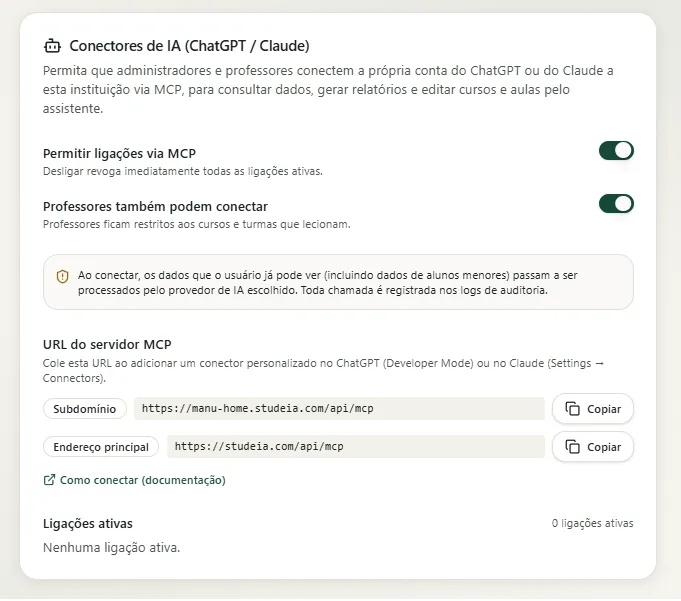
Disabling the connector immediately revokes all active connections. Disabling only the teacher option revokes only teacher connections.
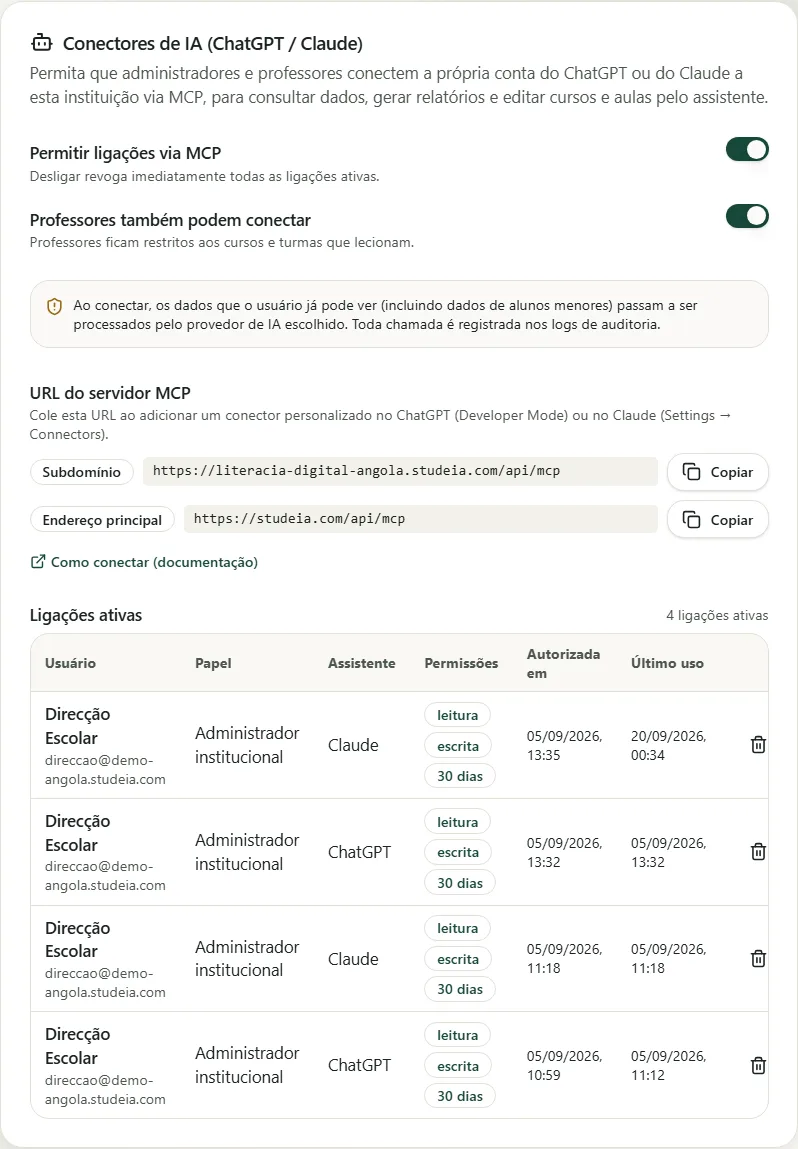
The Active connections list shows each connection with the user, role, assistant (ChatGPT or Claude), permissions, authorization date, and last used — with a Revoke button on each row.
2. Connect in Claude (web, Desktop, and mobile)
- In the chat, click + → Connectors → Add custom connector (or Settings → Connectors).
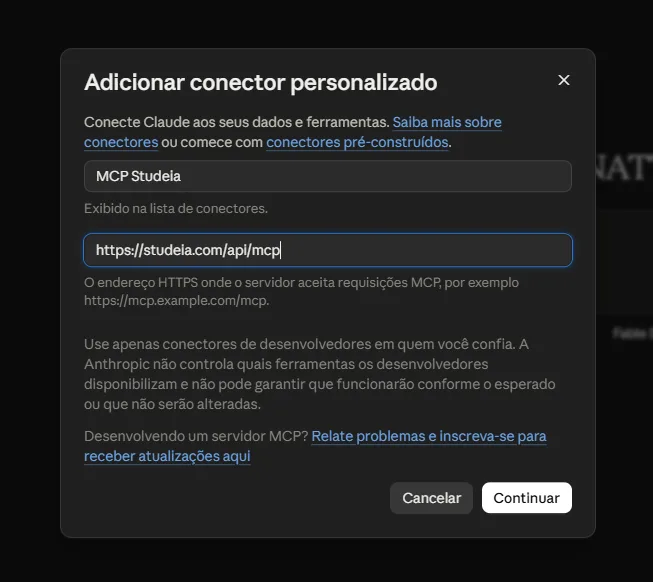
- Under Add custom connector, give it a name (e.g., "MCP Studeia") and paste the MCP server URL. There is no Client ID/Secret to enter — registration is automatic; if advanced fields appear, leave them blank.
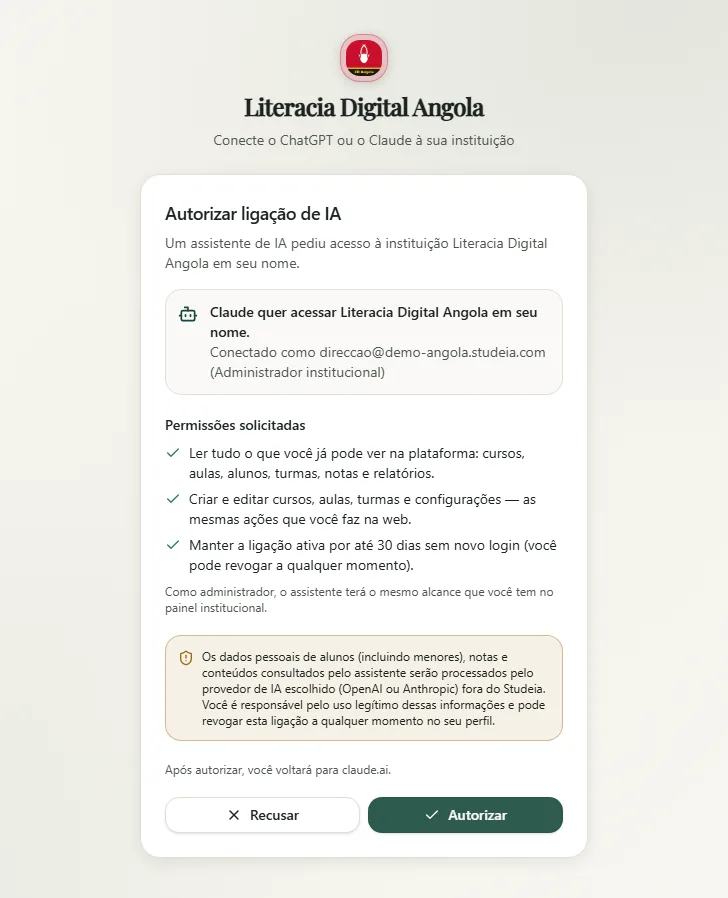
- Click Continue: you will be taken to the Studeia login (if not already logged in) and the consent screen.
- Review the permissions (read, write, 30 days) and the privacy notice → Authorize. The connector appears under + → Connectors with a toggle; under Manage connectors you can see and enable/disable each tool.
Full tutorial with screenshots: Connect Claude to your LMS.
Claude Code (terminal)
claude mcp add --transport http studeia https://<slug>.studeia.com/api/mcp
Open /mcp in the session and choose Authenticate: Claude Code opens the browser for consent and receives the redirect at http://localhost:<port>/callback. The consent screen warns that the redirect goes to a local address — only proceed if you initiated the connection on your own computer.

Full tutorial: Claude Code + LMS.
3. Connect in ChatGPT
- Settings → Plugins → Developer mode → turn on Developer mode (ChatGPT flags it as High risk because it accepts servers not verified by OpenAI — this is expected).
- Under Plugins, click + (New plugin): name (e.g., "MCP Studeia") → Connection Server URL → paste the URL → Authentication OAuth → check I understand and want to continue → Create.
- Complete the Studeia login and consent. The plugin page now shows your account under Connected accounts, the Permissions block, and the Actions list (each tool, with a Write badge on those that modify data).
- In the chat, click + and choose MCP Studeia. With the default permission (Allow low-risk actions), ChatGPT prompts for confirmation before each write action; Allow all actions removes that pause.
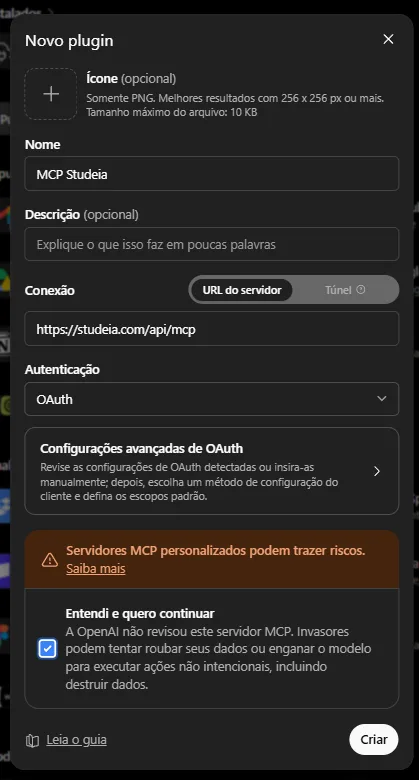
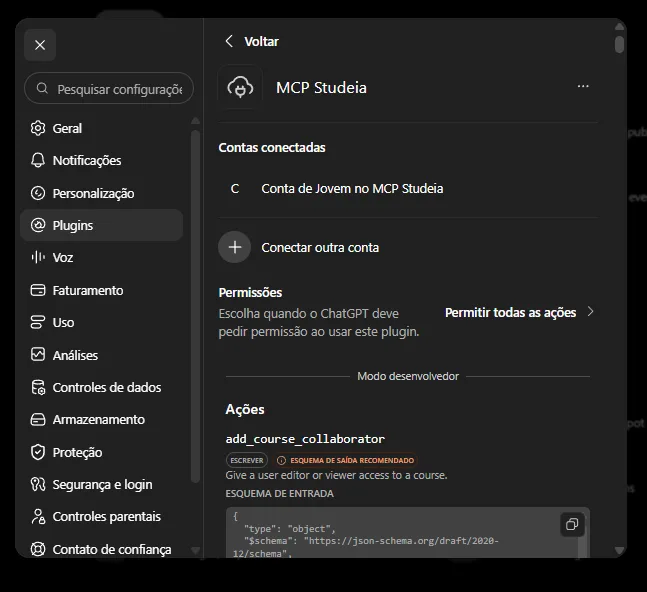
The search and fetch tools follow the ChatGPT contract, so the connector also works in deep research.
Full tutorial: Connect ChatGPT to your LMS.
4. What to ask the assistant
Real-world examples, by area:
- Reports: "Generate a report for class 3rd Grade A with at-risk students and the skills with the lowest mastery."
- Lessons: "List all lessons in the Digital Skills course that have no teacher guide and create a guide for lesson 4."
- Content: "Rewrite the slides for the Digital Vault lesson in simpler language and publish them."
- People: "Which users have never accessed the platform? Export as a table."
- Grades: "Enter 8.0 for student X on assessment Y and show me the class average."
- Assessment: "Create a question bank about fractions with 10 multiple-choice questions and a 3-criteria rubric."
- Live classes: "Schedule a live class for class B on Friday at 10 AM and tell me who was absent from the last one."
- Gamification: "Create a 'Voracious Reader' badge for students who complete module 2 and award it to the top 3."
- Automations: "Create an automation that sends a notification to a student when they have not accessed the platform for 7 days."
- Configuration (admin): "Adjust the AI tutor prompt to respond in Angolan Portuguese and show this month's AI cost."
5. Tool catalog (139)
| Area | Examples | Tools | Who sees them |
|---|---|---|---|
| Institution | get_tenant_overview, update_tenant_settings, list_audit_events, embedded tools, report template | 9 | admin (settings: institution_admin only) |
| Courses and modules | list_courses, get_course, create_course, publish_course, reorder_modules, clone_course, export_course_cartridge (IMS CC), AI review, course RAG, collaborators | 19 | teacher (create/clone: admin) |
| Lessons | get_lesson, create_lesson, update_lesson_content (validated by type), update_lesson_teacher_guide, bulk_update_lessons, populate_lesson_with_ai, quiz configuration | 11 | teacher |
| People, class groups, and enrollments | list_users, create_user, invitations, tags, create_class_group, enroll_student, update_enrollment | 18 | class groups/enrollments: teacher reads; people management: admin |
| Assessment | get_gradebook, record_grades, export_gradebook_csv, competencies and frameworks, question banks, rubrics, get_quiz_analytics | 19 | teacher (frameworks: admin) |
| Reports | get_student_report, get_course_report, get_tutor_efficacy_report | 3 | teacher (tutor efficacy: admin) |
| Student answers | list_student_quiz_attempts, get_quiz_attempt (question by question), get_activity_attempt, list_student_tutor_quizzes, get_assignment_submission, grade_assignment_submission, release_quiz_results | 9 | teacher (students in their class groups) |
| Media and communication | search_media, get_media_transcription, list_announcements, live classes (schedule, start, end, attendance) | 11 | teacher |
| Gamification | global and per-course configuration, badges, award_badge, contests, rewards, redemptions, analytics | 18 | teacher (per-course badges); admin (global) |
| Automations | list_automations, create_automation, toggle_automation, test_automation, execution history | 8 | admin |
| AI configuration | tutor prompts, AI limits, model routing, pedagogical configuration, AI analytics, RAG gaps | 10 | institution_admin (analytics: admin) |
| Search | search, fetch (ChatGPT contract) | 2 | all |
| Generic | list_api_endpoints, call_institution_api — reaches the documented institutional API | 2 | all (with role permissions) |
Totals: 139 tools — 69 read and 70 write. Write tools only appear when the connection has the write scope. MCP resources available for the assistant to read: studeia://docs/lesson-content-schemas (schemas for all lesson types), studeia://docs/api-endpoints (reachable endpoints), and studeia://tenant/summary (who is connected, role, and scopes).
Not available via MCP: file uploads, billing, SSO/SCIM, AI and video provider keys, announcement creation, and the connector configuration itself.
6. How to restrict the scope
The connection scope is requested by the assistant (read, write, 30 days), not chosen in Studeia. To work with fewer privileges:
- In Claude: under Manage connectors → MCP Studeia, disable the write tools you do not want to expose; Claude also prompts for permission on each tool ("Allow once" / "Always allow").
- In ChatGPT: keep the plugin permission set to Allow low-risk actions (default) — each tool marked as Write prompts for confirmation before executing; Allow all actions removes that pause.
- In Claude Code: deny permission when the assistant asks to use a write tool, or approve only read tools.
- As admin: turn off Teachers can also connect to restrict the connector to administrators, coordinators, and pedagogical staff.
- Always: revoke the connection when you finish — it expires on its own after 30 days.
7. Security and token lifecycle
- OAuth 2.1 with PKCE S256 required; dynamic registration only accepts Claude, ChatGPT, and loopback callbacks (
http://localhost:<port>/callback). - Opaque tokens: the database stores only the hash. Access token lasts 1 hour; the refresh token is rotating (reuse of an old refresh token revokes the entire connection) and the connection expires at most 30 days from consent.
- Bound to the address: a token issued at
school.studeia.comis not valid atstudeia.com— reconnect using the same address if you switch domains. - Role and institution re-read on every call: if the user's role changes or they leave the institution, the connection is automatically revoked.
- Call rate limit per connection: 1,000/hour on the demo and 5,000/hour on paid plans; per-IP limits on OAuth endpoints.
- Global platform administrators and impersonation sessions cannot authorize connections.
8. Audit logging
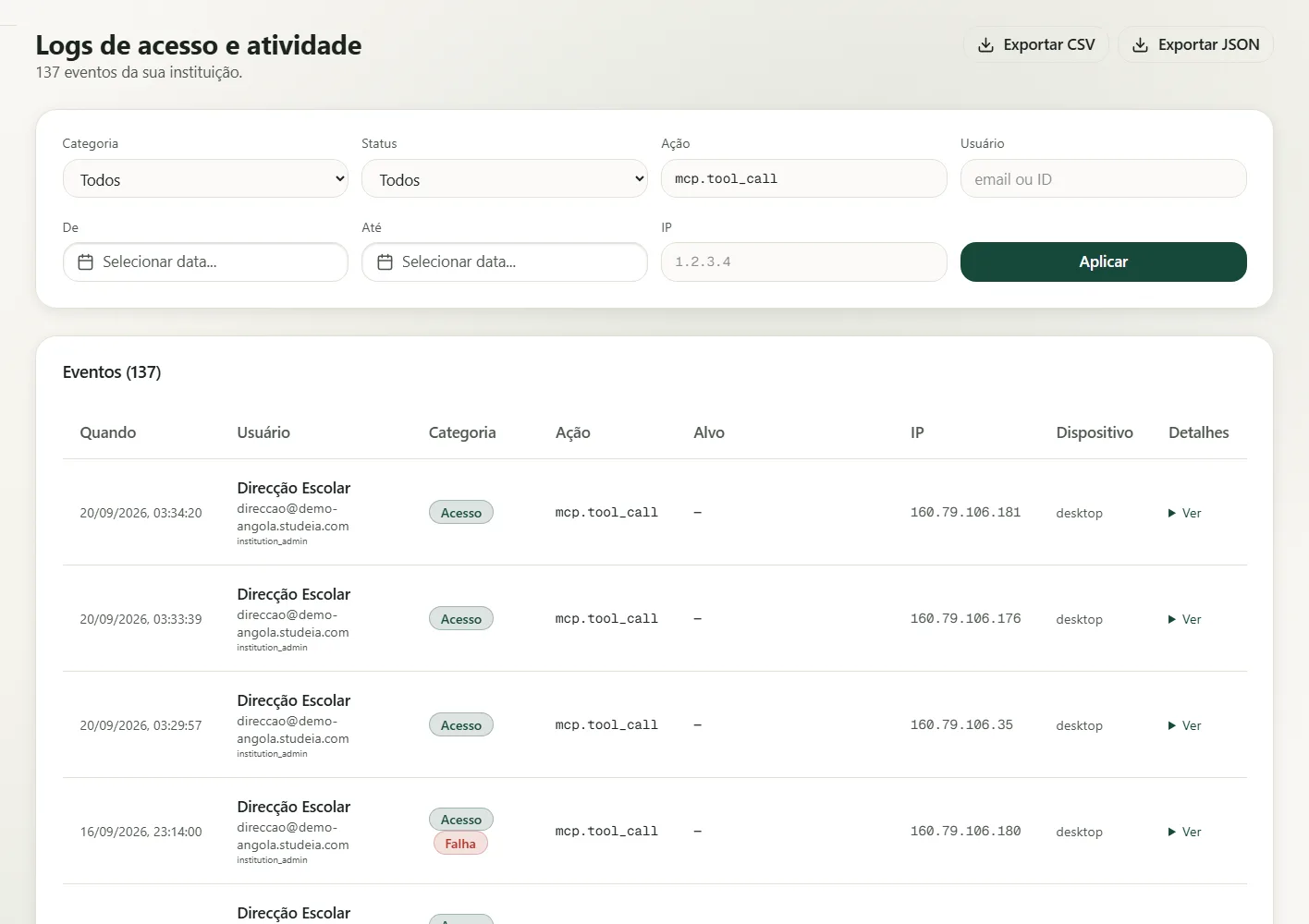
Every event in the connection's lifecycle generates mcp.* events in the institution's logs: client registration, consent granted/denied, token issued/renewed, refresh token reuse detected, revocation, configuration change, and every tool call (mcp.tool_call), with the tool name, involved IDs, success status, and duration — never the content sent or received. In Logs, filter the action by mcp..
9. Data protection and student data
- Any data the assistant retrieves (including data about minor students) is processed by the user's account provider — OpenAI or Anthropic — outside of Studeia. The consent screen makes this explicit.
- The institution is the data controller and is responsible for lawful use: use the connector for educational purposes, request only what is necessary (data minimization), revoke idle connections, and review your AI provider's Data Processing Agreement (DPA).
- What stays in Studeia: the connection record (client, scopes, dates) and audit events — never conversation content. User connections are included in personal data exports and can be revoked at any time.
Common issues
| Symptom | Likely cause | What to do |
|---|---|---|
| "Couldn't reach the MCP server" in Claude | Wrong URL or connector disabled | Use exactly https://<slug>.studeia.com/api/mcp and check the toggle under Settings |
| redirect_uri error during registration | Unsupported client | Only Claude, ChatGPT, and clients with a local callback (Claude Code) are accepted |
| "The institution has not yet enabled AI connectors" | Toggle is off | Ask the administrator to enable it under Settings → AI Connectors |
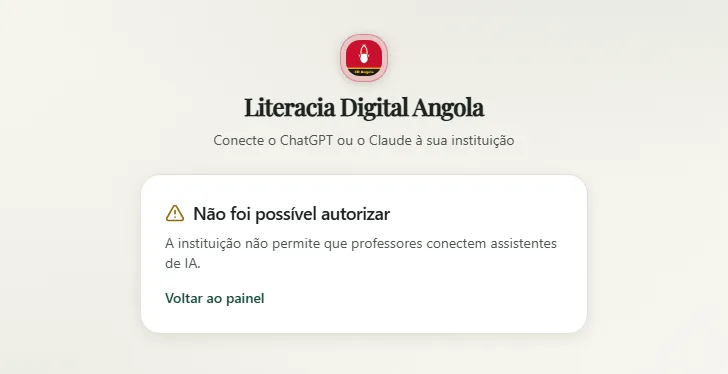
| "The institution does not allow teachers to connect" | Teacher option is disabled | Ask the administrator to turn on Teachers can also connect |
| Authorization request expired or invalid | Consent took more than 10 minutes or was reopened | Start the connection again from the assistant |
| 401 after switching domains | Token bound to the original address | Reconnect using the same URL |
| Tool returns forbidden | Teacher is outside the course/class group or action is admin-only | Check the role and whether the course is among the ones you teach |
| 429 | Hourly call rate limit | Wait or reduce batch requests |
| Prompts for login again after weeks | Connection reached 30 days | Authorize again — this is the expected behavior |
| Cannot authorize during support session | Impersonation session | Impersonation never authorizes AI connections |
For developers
- Discovery:
/.well-known/oauth-protected-resource/api/mcpand/.well-known/oauth-authorization-server(relative to the host). POST /api/mcpwithout a token returns401withWWW-Authenticate: Bearer resource_metadata=….- Scopes:
read,write,offline_access. Token prefixes:mcp_at_(access) andmcp_rt_(refresh). - Connector management routes (
/api/institution/mcp/*) only accept web sessions — never API keys or MCP tokens. See the "MCP (ChatGPT / Claude)" group in the API reference. - Unattended automation (CI, scripts) should use the public API with a
mia_key: MCP consent is always interactive.