Claude is already great at writing lesson plans, summarizing, and analyzing. What it lacks is real context: who your students are, what has already been taught, who is falling behind. With a custom MCP connector, Claude can read and edit your LMS directly — using your account, your permissions, and a full audit trail of everything it does.
This tutorial walks through the connection between Claude and Studeia, with screenshots. The screenshots show Studeia in Portuguese and Claude in the language and theme of the account used (Portuguese, dark theme); menu names may vary depending on your Claude version and language.
Quick answer
- In Studeia: Settings → AI Connectors → enable → copy the URL
- In Claude: + → Connectors → Add connector → name + URL → Continue
- Log in and consent in Studeia → connector active (with a toggle under + → Connectors)
- Manage connectors shows the tools and lets you disable write ones
- The connection works in Claude.ai, Desktop, and mobile; revoke it from your profile whenever you want
Prerequisites
| What | Details |
|---|---|
| Claude account with custom connectors | An Anthropic feature — availability depends on your account plan |
| Role in Studeia | Institutional admin, coordinator, instructional designer, or teacher (if the institution allows it) |
| Connector enabled | An institutional admin enables it once |
| Institution address | https://<slug>.studeia.com or your verified custom domain (the main address https://studeia.com/api/mcp also works) |
Step 1 — Enable the connector in Studeia (admin)
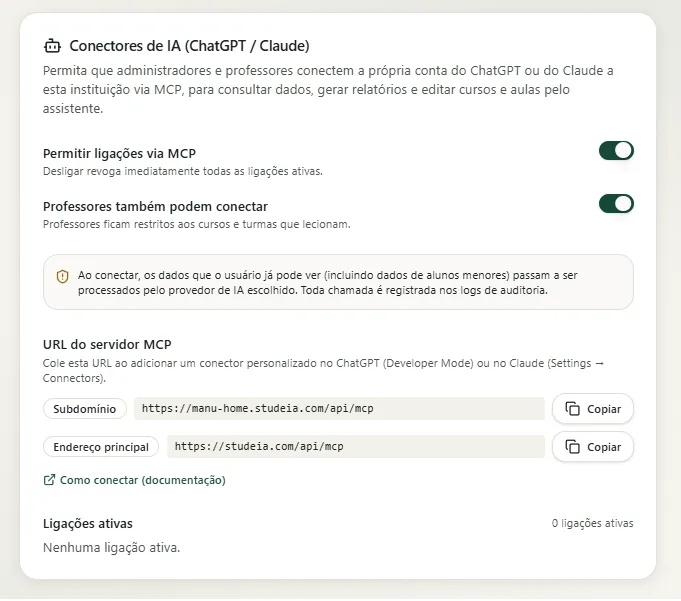
Under Settings → AI Connectors (ChatGPT / Claude), turn on Allow connections via MCP and decide whether Teachers can also connect. Copy the MCP server URL — Studeia identifies your institution by the account you log in with, so both the subdomain and the main address work.
Step 2 — Add the connector in Claude
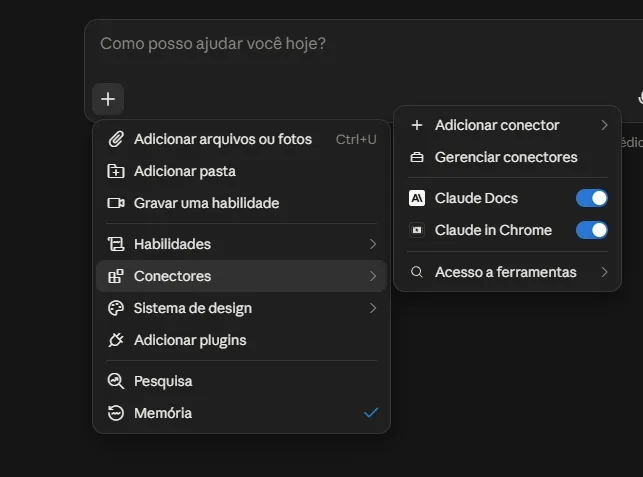
In Claude.ai, click the + button in the message box and open Connectors. The submenu lists already-enabled connectors (each with its own toggle) and two actions: Add connector and Manage connectors. The same path exists under Settings → Connectors.
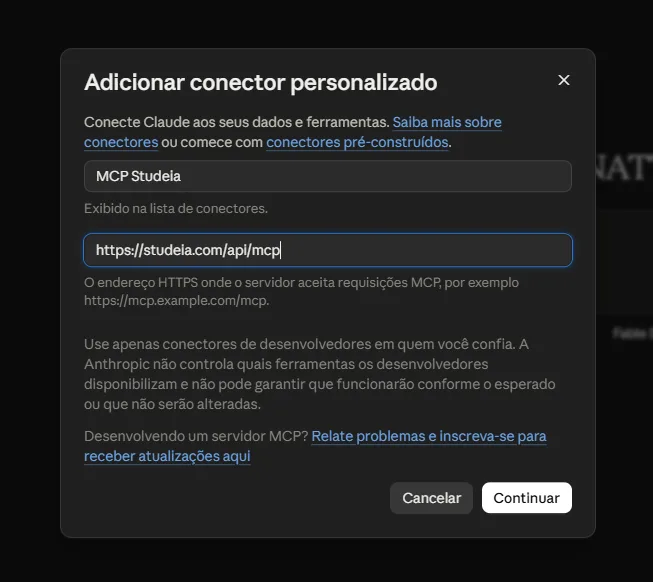
Click Add connector. In the Add custom connector dialog, fill in:
| Field | Value |
|---|---|
| Name | MCP Studeia (or your institution's name) — this is what appears in the connector list |
| Server address | the URL copied in step 1 (https://<slug>.studeia.com/api/mcp) |
There is no Client ID or Client Secret to enter: Studeia uses dynamic client registration, and Claude registers itself automatically. If your version shows advanced OAuth fields, leave them blank. Read Anthropic's notice about only using connectors from developers you trust, then click Continue.
Step 3 — Connect and authorize
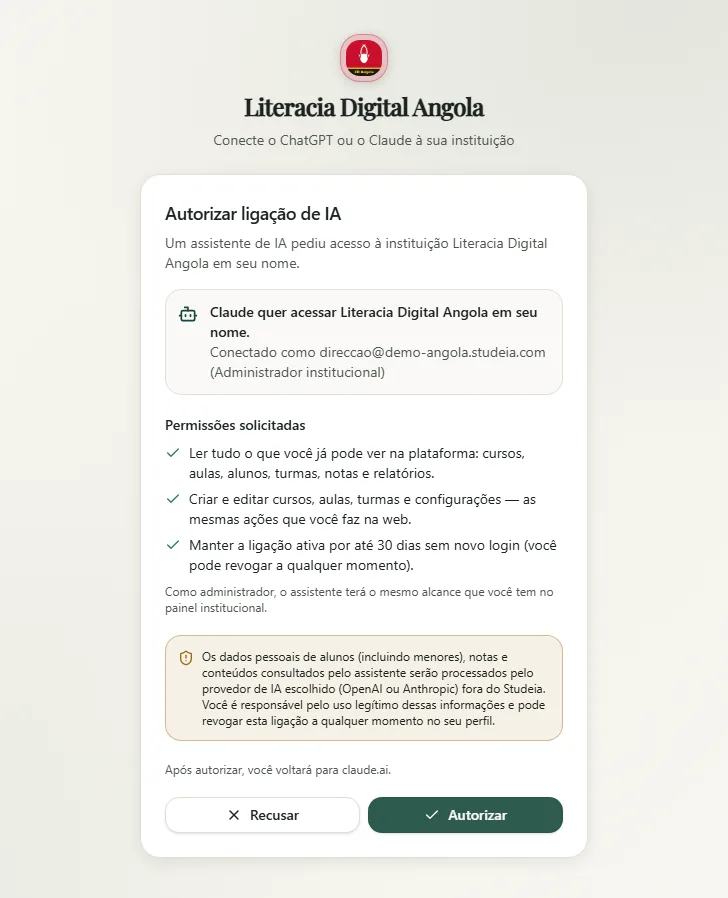
Claude opens Studeia in the browser: log in (including via SSO) and review the consent screen:
- Claude wants to access the institution on your behalf — connected as you, with your role;
- Requested permissions: read access to what you already see, create and edit as you would on the web, connection for up to 30 days;
- a note about your role (admins have the same reach as the dashboard; teachers only see their own courses and cohorts);
- privacy notice: data accessed will be processed by Anthropic.
Click Authorize and you are returned to Claude with the connector active.
Step 4 — Review and configure tools
Back in chat, open + → Connectors: MCP Studeia appears in the list with an enabled toggle — turn it off to exclude the connector from a specific conversation without revoking anything.
Under Manage connectors (or Settings → Connectors), the connector has its own page listing all the tools Studeia exposed for your role — up to 130 for an admin, 67 for a teacher — each with a toggle. A common practice: keep only read tools enabled for reports and enable write tools only when editing courses. This is also where you disconnect or remove the connector.
Step 5 — Use it in chat
In a new chat, ask: "Show the institution overview." Claude calls get_tenant_overview, displays a collapsible block with the tool name and raw result, and summarizes courses, cohorts, and users in plain text.
The first time Claude uses each tool, it asks for permission in a banner above the message box, showing the connector and tool name: Allow once or Always allow (for this conversation). For read tools, "Always allow" is safe; for write tools, it's worth expanding the call block and reviewing the arguments before allowing — Claude shows the JSON it is about to send (for example, the title and content of the lesson it will create).
Desktop and mobile
Custom connectors are tied to your Claude account: the same connector appears in Claude Desktop and the mobile app (the conversation's connector menu), with no extra setup and no new consent prompt. Revoking it in Studeia disconnects all of them at once.
What to ask Claude (by role)
Teacher
- "Which students in cohort A are at risk? Cross-reference with the lowest-mastery competencies."
- "Write the teacher guide for lesson 5 with a minute-by-minute script and assessment criteria."
- "Turn the text of lesson 2 into 10 slides with a quiz at the end and publish it."
- "Rewrite the questions in the Fractions bank that have low discrimination."
Coordinator or instructional designer
- "Compare 7th-grade cohorts by competency and identify where to intervene."
- "List courses that are missing a teacher guide in more than half of their lessons."
- "Generate an AI tutor effectiveness report for the past month."
Admin
- "Adjust the AI tutor prompt to match our school's tone and show the AI cost per course."
- "Create an automation that sends an email to the coordinator when a student scores below 50% on two consecutive quizzes."
A typical report comes back with a table (student, risk level, reason, last activity) and recommendations. The numbers come from Studeia's reporting tools (get_student_report, get_course_report), so they match the dashboard — Claude organizes, compares, and suggests.
Security, privacy, and auditing
- Acts as you: the OAuth token represents your account; role and institution are re-read on every call and the connection drops if anything changes.
- Short-lived tokens: 1-hour access token, auto-refreshed, connection lasts at most 30 days.
- Audit log: every call generates a
mcp.tool_callentry in the institution's logs — tool name, IDs, success status, and duration, never the content. Filter bymcp.under Logs. - Data: what Claude accesses is processed by Anthropic, outside of Studeia; the institution is the data controller.
- Out of scope: file uploads, billing, SSO/SCIM, provider keys, and connector configuration.
Common issues
| Symptom | What to do |
|---|---|
| "Couldn't reach the MCP server" / won't connect | Check the exact URL (ends in /api/mcp) and confirm the connector is enabled at the institution |
| redirect_uri error | Use the official Claude client (claude.ai, Desktop, or mobile) — other clients are not on the accepted callback list |
| "The institution has not yet enabled AI connectors" | Ask your admin to enable it under Settings → AI Connectors |
| Write tools don't appear | They were disabled under Manage connectors, or the connection was authorized without write scope — re-enable them or reconnect |
| Tool returns forbidden | Course is outside your cohorts, or the action is admin-only |
| Prompts for login again after weeks | The connection reached 30 days — authorize again |
Revoke access
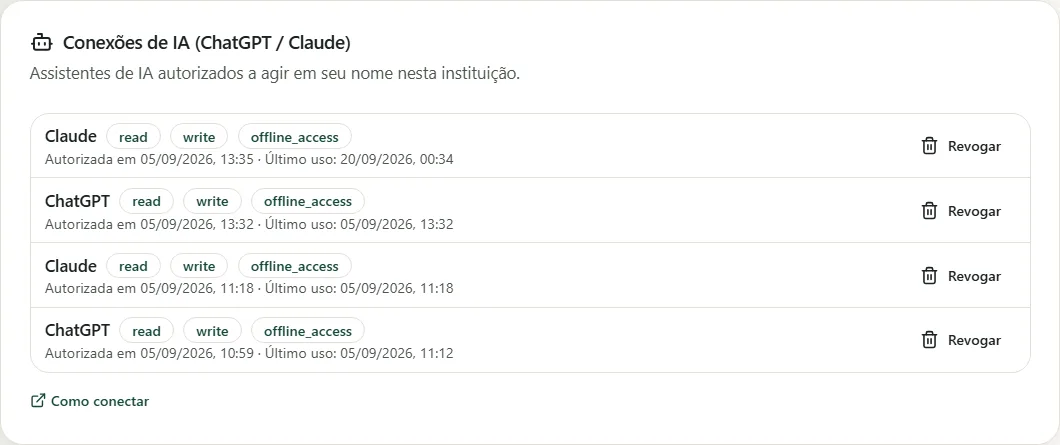
- You: Profile → AI Connections (ChatGPT / Claude) → Revoke.
- Admin: Settings → AI Connectors → Active connections → Revoke; disabling the connector revokes all of them.
- In Claude, Disconnect or Remove under Manage connectors.
Frequently asked questions
Do I need a Client ID and Secret? No — dynamic client registration.
Does it work on mobile? Yes, the same connection works in Claude.ai, Desktop, and the mobile app.
How do I make it read-only? Disable write tools under Manage connectors and answer "Allow once" judiciously.
How long does it last? 1-hour token refreshed automatically; connection lasts up to 30 days.
Complete connector guide (permissions by role, catalog of all 130 tools, security): Connect ChatGPT, Claude, or Claude Code to Studeia. Working in the terminal? See Claude Code + LMS. Using ChatGPT? See Connect ChatGPT to your LMS.