If you already use Claude Code in the terminal, the shortest path to operating an LMS is the same as for any remote MCP server: claude mcp add, authenticate, ask. This tutorial shows the connection with Studeia — with OAuth on your account, real permissions, and auditing — and some flows that make sense in the terminal: generating teacher guides in bulk, reviewing a course, exporting IMS CC cartridges, posting grades from a CSV.
The screenshots show the terminal and Claude Code in English and the Studeia interface in Portuguese.
Quick answer
claude mcp add --transport http studeia https://<slug>.studeia.com/api/mcp
/mcp→ studeia → Authenticate → login + consent in the browser- The callback arrives at
http://localhost:<port>/callback; the server appears as connected - Ask in natural language; Claude Code requests permission per tool
- 1-hour token refreshed automatically; connection lasts up to 30 days; revoke from your profile whenever you want
Who this is for
- Technical coordinators and developers who prefer the terminal over a dashboard.
- Content teams that need bulk operations (dozens of lessons, guides, quizzes).
- Anyone with an existing content repository (markdown, CSV, spreadsheets) who wants to push it to the LMS without copy-pasting.
If you don't use the terminal, the Claude.ai and ChatGPT tutorials cover the same connection through the interface.
Prerequisites
| What | Detail |
|---|---|
| Claude Code installed and logged in | Version with support for HTTP MCP servers (claude mcp add --transport http) |
| Role in Studeia | Institutional administrator, coordinator, pedagogue, or teacher (if the institution allows it) |
| Connector enabled | An administrator enables it under Settings → AI Connectors |
| Browser on the same machine | The OAuth consent callback goes to localhost — it must be your computer |
Step 1 — Enable the connector in Studeia (admin)
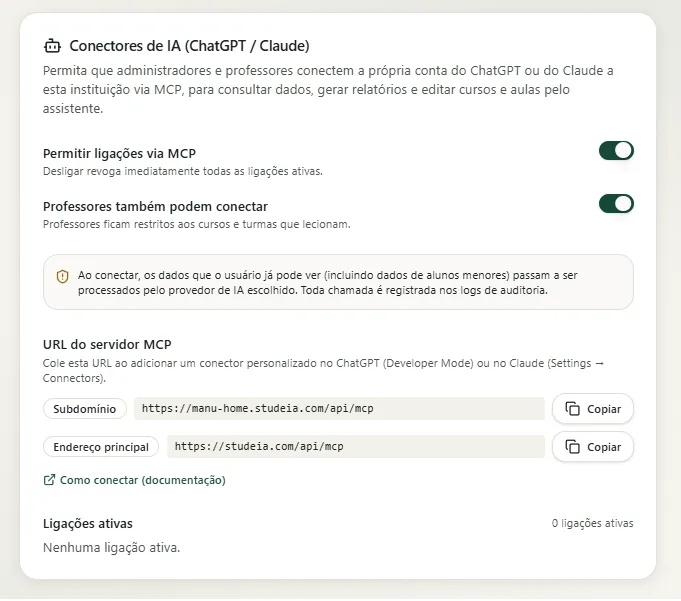
Under Settings → AI Connectors (ChatGPT / Claude), turn on Allow MCP connections and copy the MCP server URL (https://<slug>.studeia.com/api/mcp or your custom domain).
Step 2 — Register the server
# scope of the current project (default)
claude mcp add --transport http studeia https://<slug>.studeia.com/api/mcp

# or for all projects on your machine
claude mcp add -s user --transport http studeia https://<slug>.studeia.com/api/mcp
Claude Code confirms the registration. Nothing is sent to Studeia yet — only on authentication.

Step 3 — Authenticate
Open a session (claude) and type /mcp. The studeia server appears as needs authentication. Select it and choose Authenticate.
The /mcp panel is a simple list, inside the session itself, with one server per line and its status next to the name (connected, needs authentication, or failed). Use the arrow keys to select studeia and press Enter to open the server actions — the first one, when there is no token yet, is Authenticate.
The browser opens Studeia. Log in and review the consent screen. Notice the yellow warning: "the callback will go to a local address (localhost:…)" — this is expected for Claude Code. Only proceed if you initiated this connection on this computer.
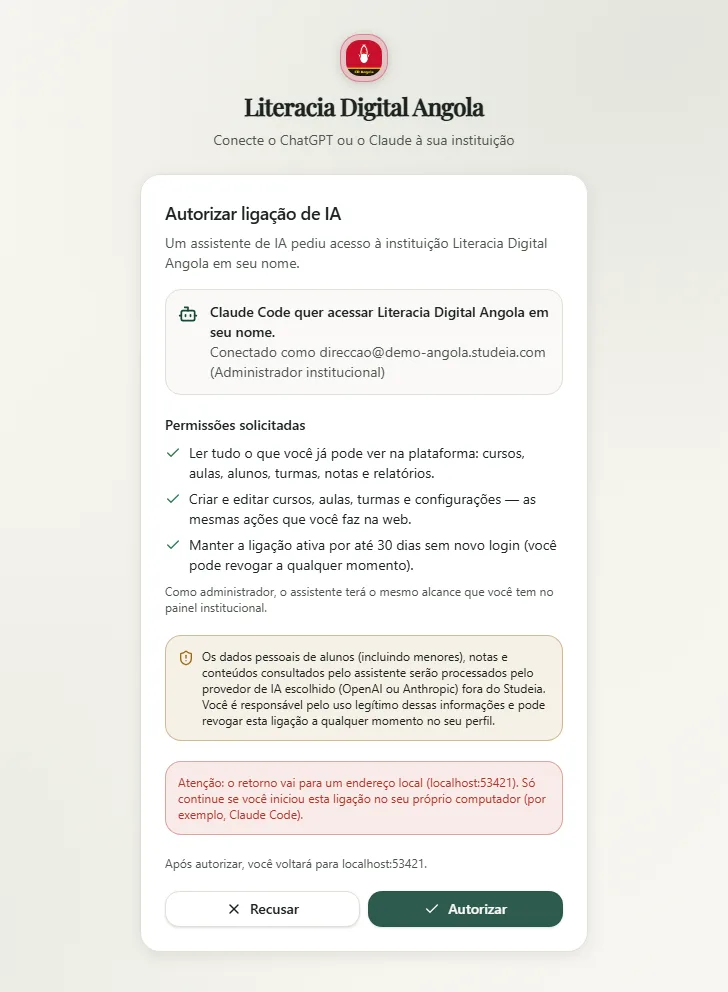
Click Authorize. The browser redirects to http://localhost:<port>/callback, Claude Code exchanges the code for the token, and the server becomes connected, showing the count of tools available for your role.
Back in the terminal, the server line changes to connected and the panel shows the list of loaded tools (the number depends on your role: up to 130 for administrators, 67 for teachers) and the studeia:// resources. If you prefer to check outside the session, claude mcp list shows the same status, and claude mcp get studeia shows the details (scope, URL, status).
Step 4 — Use
Ask in natural language. On the first call of each tool, Claude Code requests permission — approve read ones without hesitation; for write ones, read the arguments before accepting.
> List the institution's courses with the number of lessons and publication status.
What you see in the session: Claude Code announces the call with the tool's full name (in the format studeia - list_courses), shows the arguments it will send, and waits for your decision — Yes (just this once), Yes, and don't ask again for this tool (for the rest of the session), or No. After the server response, it summarizes the result as text or a table. For a write tool like create_lesson, the permission request includes the full JSON of the content (title, type, lesson blocks): read it before accepting — it is exactly what will be saved in the LMS. Denying doesn't end anything; Claude Code simply continues without executing that action.
MCP resources worth reading first
The server exposes three resources that Claude Code can read before acting:
| Resource | Purpose |
|---|---|
studeia://docs/lesson-content-schemas | Schema for all lesson types (slides, quiz, interactive…) — create_lesson and update_lesson_content validate against it |
studeia://docs/api-endpoints | Institutional API endpoints reachable via call_institution_api |
studeia://tenant/summary | Who you are in the connection: institution, role, scopes |
Useful terminal workflows
Teacher guides in bulk
> For each lesson in the course "Digital Skills 3rd Grade" without a teacher guide,
  generate a guide with a summary, objectives, a 45-min script, and assessment criteria.
  Show me the first one before saving the rest.
Course review with real data
> Run the AI review on the "Fractions" course and list the 5 most urgent suggestions
  with the most frequent student misconceptions.
Export an IMS Common Cartridge
> Export the "Fractions" course as IMS CC and save it to ./exports/fractions.imscc
Grades from a CSV
> Read ./grades-exam1.csv (columns: email, grade) and post the grades to the
  "Exam 1" item in the gradebook for class 6A. Confirm the list with me before saving.
What doesn't exist as a dedicated tool
> List the rubrics API endpoints and create a 3-criteria rubric
  for the "Essay 2" assignment.
Claude Code calls list_api_endpoints and then call_institution_api — with the same permissions you would have on the web.
Security
- Token stored locally, hash on the server: Claude Code stores the token on your machine; Studeia stores only the hash and connection metadata.
- Scopes:
read,write,offline_access. The write scope unlocks 68 tools; without it, the server only lists read tools. - Role re-read on every call: if your role changes or you leave the institution, the connection is revoked automatically.
- Bound to the address: a token issued for
school.studeia.comis not valid atstudeia.com— if the URL changes, register and authenticate again. - Auditing: each call generates a
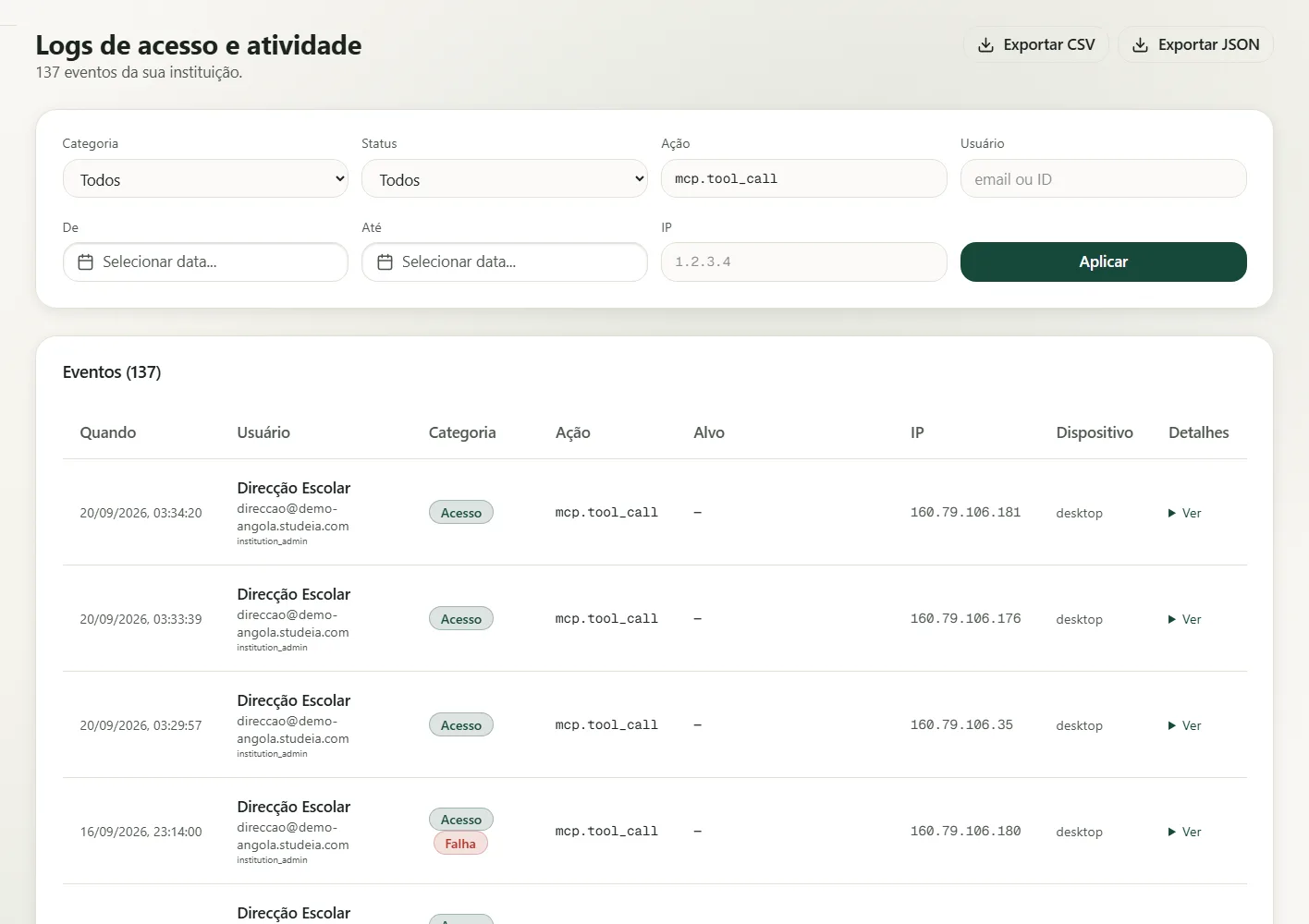
mcp.tool_callentry in the institution's logs (tool, IDs, success, duration — never the content).
Common issues
| Symptom | What to do |
|---|---|
| Browser doesn't return to Claude Code | Complete the consent on the same machine; if the local port is blocked by a firewall, allow localhost |
| invalid_redirect_uri error | Only http://localhost:<port>/callback and http://127.0.0.1:<port>/callback are accepted as local callbacks |
| 401 resource_mismatch | You registered one URL and authenticated with another (subdomain vs. main address) — use the same URL in both steps |
| "The institution has not yet enabled AI connectors" | Ask the administrator to enable the connector |
| Tool responds with forbidden | Course is outside your classes or the action is administrator-only |
| needs authentication after weeks | The connection reached 30 days — /mcp → Authenticate |
Revoke
- You: Profile → AI Connections (ChatGPT / Claude) → Revoke. The next Claude Code call fails within 60 seconds.
- Administrator: Settings → AI Connectors → Active connections → Revoke.
- To remove the server from your machine:
claude mcp remove studeia.
Frequently asked questions
Do I need an API key? No — OAuth 2.1 with your account.
Does it run in CI? No; consent is interactive. Use the public API with an mia_ key.
Other MCP clients? Only Claude Code, Claude.ai/Desktop/mobile, and ChatGPT have been validated.
Where is the token stored? On your machine; Studeia stores only the hash.
Full connector guide (permissions by role, catalog of 130 tools, security): Connect ChatGPT, Claude, or Claude Code to Studeia. For integrations without a human user, see the public API.